CSV data format guide
NOTE: A "Scene" is the UI label name for an event. Thus, scenes and events are the same thing.
The ARK event metadata is entered in a formatted Excel sheet (.xlsx). A template can be downloaded
here.
The Excel sheet is then exported as a CSV file and uploaded to the online converter.
The converter can be run in two different modes:
- 'Complete' mode - this requites all 84 events to be specified in the Excel sheet.
- 'Selected scenes' mode - any set of individual scenes can be listed. They will then be merged with a list of existing scenes to make a complete set.
The data sheet has seven colums:
- Bank number a single digit between 1 to 7
- Scene number a single digit between 1 to 12
- Scene name
- No. of samples the total number of samples in the sound
- Start position the start point for the sound in milliseconds (mS)
- Lock position the lock point for the sound in milliseconds (mS)
- End position the end point for the sound in milliseconds (mS)
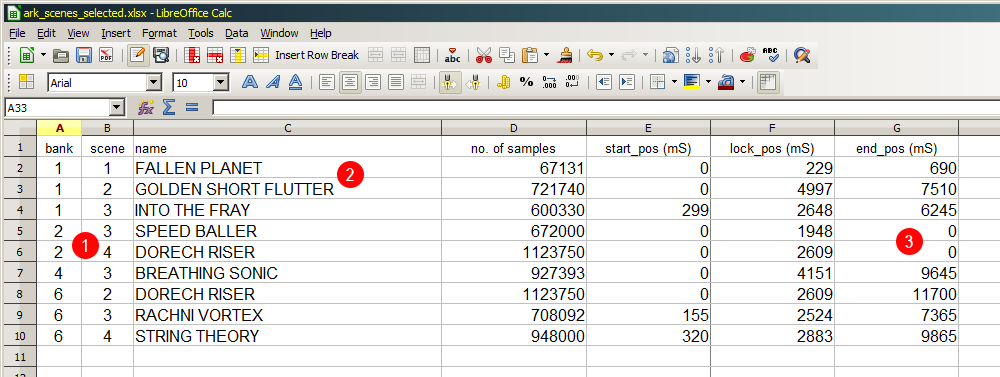
Screenshot of the Excel sheet. Please note:
- The banks/scenes should be listed in ascending order, even if they are not continous.
- Use UPPER CASE only for the names. The characters A-Z,0-9,space,dash,period and underscore are allowed. Nothing else.
- If the end position is set as '0' the sound will be set to stop 2 mS (192 samples @ 96k) before the end of file.
When all the data is entered correctly, the sheet should be exported/saved as a CSV (.csv) file. The values should be separated by commas.
If necessary, consult the Excel documentation for details on how to do this.
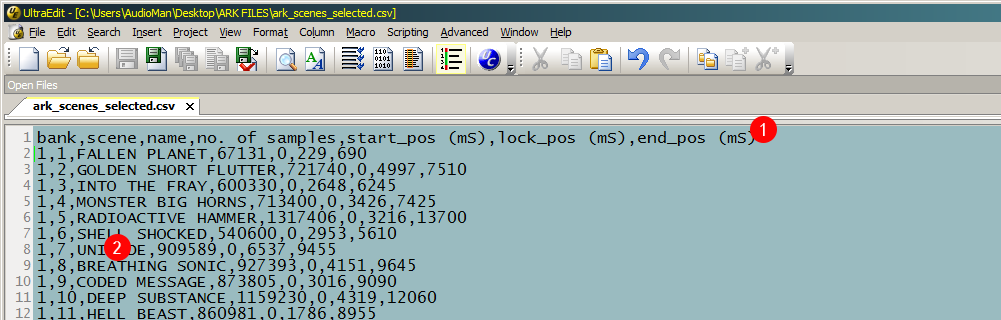
Screenshot of the CSV file. Please notice that:
- The header line can be included (but it doesn't have to). It will be automatically removed when parsing.
- The scene names do NOT need to be enclosed by double quotes. Just make sure they don't contain any commas.
If enclosing is automatic and can not be turned off, make sure it is using double quotes and nothing else.
- Check your CSV file by opening it in a text editor if you are unsure.
That's all.
Make a note of the location of the CSV file. This is the file that will be used to create the new NKA files.
For details on other files, see the file names & location page.